

Radio has officially embraced podcasting as a cornerstone of the modern broadcast business model. Rather than viewing on-demand audio as a threat, savvy stations are leveraging it to deepen audience engagement and unlock new digital revenue streams.
The shift is backed by powerful data. iHeartMedia recently reported that its podcast-specific revenue surged by 28.5% in 2025. Furthermore, with 41% of traditional radio listeners shifting toward podcasts and a projected global audience of 600 million by the end of the year, the transition to an integrated digital strategy is essential for survival.
The Strategic Imperative for Self-Hosted Podcasting
Many stations make the mistake of “renting” their audience by relying solely on third-party hosting platforms. While these services offer convenience, they introduce significant business risks.
Avoiding “Platform Dependence”
When you rely on an external host, you risk your content disappearing due to technical outages or billing lapses. More importantly, you lose control over the distribution chain. By managing your own feed via WordPress, you ensure that the link between your station and platforms like Spotify or Apple Podcasts remains under your direct control.
Maximizing Revenue and Data Ownership
Third-party platforms often generate generic web pages that compete with your own site in search results. By self-hosting your podcast on your station’s WordPress site, you:
- Keep 100% of Display Revenue: Serve your own banner ads and promotions.
- Own the Data: Use Google Analytics to track the full listener journey.
- Direct Engagement: Use newsletters, chatbots, and e-commerce (WooCommerce) directly on your episode pages to monetize your “Superfans.”
Transforming Your Site with Radio Station PRO and Blubrry PowerPress
The transition from a broadcast-only station to a podcast powerhouse is seamless when using Radio Station PRO. You don’t need to write custom code or install complex database tools; the infrastructure is already built into the plugin.
The “Episodes” Post Type: Your Integrated Hub
Radio Station PRO includes a dedicated Episodes post type. This isn’t just a list of audio files; it is a professional publishing system that creates a dedicated, SEO-optimized landing page for every show segment.
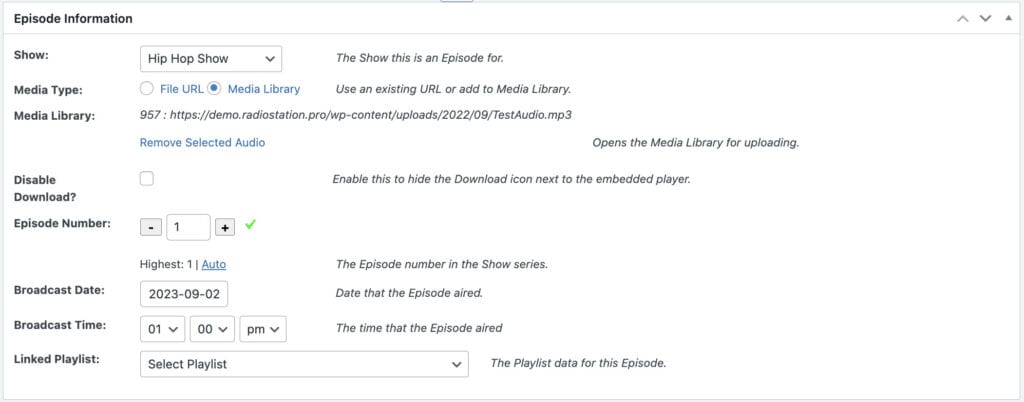
Because this post type is native to Radio Station PRO, it is already integrated with your Show schedules and Host profiles. This allows you to:
- Gate Content: Use membership plugins to offer exclusive “Director’s Cut” episodes to paid subscribers.
- Sell Merchandise: Feature show-specific apparel directly on the episode page.
- Drive Donations: Embed pledge forms for non-commercial stations alongside the audio player.
Implementation Guide: Configuring the Podcast Feed
To turn your Radio Station PRO episodes into a valid podcast feed for Apple and Spotify, you will use the Blubrry PowerPress plugin.
Step 1: Enable Post Type Podcasting
By default, podcasting plugins often look for “Posts.” You must tell PowerPress to look at your Radio Station PRO “Episodes” instead.
- In your WordPress Dashboard, go to PowerPress > Settings.
- Navigate to the Advanced Options (or “Feeds” tab depending on your version).
- Look for Post Type Podcasting.
- Check the box to enable podcasting for the Episodes post type.
- Click Save Changes.
Step 2: Creating an Episode
Now, when you create a new entry under Radio Station > Episodes, you will see a “Podcast Episode” box at the bottom of the editor. Simply upload or link your audio file (stored on a service like Amazon S3) and publish.
Finding Your Podcast Feed URL
Once you have published your first episode, you need the Feed URL to submit your podcast to directories like Apple Podcasts, Spotify, and Stitcher.
When using Post Type Podcasting in WordPress, your feed URL follows a specific structure. Typically, it will be:
How to verify your Feed URL:
- The Manual Check: Simply add
/feed/episodes/to the end of your website URL and paste it into a browser. If you see a wall of XML code, your feed is active! - PowerPress Shortcut: Go to PowerPress > Post Type Podcasting. You will see your specific “Episodes” feed listed there. You can copy this link directly.
- Validate Your Feed: Before submitting to Apple, copy your URL and paste it into the Cast Feed Validator to ensure it meets all industry standards.
Critical Final Step: Flush Permalinks
If you find that your feed URL or your new episode pages are returning a 404 Error, you must refresh your site’s “map.”
- Go to Settings > Permalinks.
- Do not change any settings.
- Scroll to the bottom and click Save Changes.
By utilizing the native Episodes post type in Radio Station PRO, you have transformed your website from a simple schedule into a revenue-generating, audience-owning podcast network.
To ensure your podcast is accepted by Apple Podcasts and easily discoverable by listeners, you need to configure your metadata correctly. When using PowerPress with the Radio Station PRO Episodes post type, these settings are usually found under the specific “Post Type Settings” for Episodes.
Here is your checklist for a broadcast-ready podcast feed.
Optimizing Your Podcast Metadata for Apple Podcasts Approval
To ensure your podcast is accepted by Apple Podcasts and easily discoverable by listeners, you need to configure your metadata correctly. When using PowerPress with the Radio Station PRO Episodes post type, these settings are usually found under the specific “Post Type Settings” for Episodes.
Professional Podcast Description Templates
A great description serves two masters: the listener (convincing them to click play) and SEO (helping the algorithm find you). Here are three templates you can adapt for your different radio shows.
Option 1: The Personality-Driven Show (Morning Shows/Talk Radio)
Title: [Show Name] with [Host Names]
Summary: Join [Host Names] every [Day of Week] for a deep dive into [Local City/Region]’s biggest stories, funniest moments, and [specific niche, e.g., the latest in local sports]. Broadcast live on [Station Call Letters] and now available on-demand, [Show Name] brings you the conversations everyone in [City] is having. Whether it’s [Segment A] or our famous [Segment B], we’re your daily source for [Primary Value: e.g., laughter and local news]. Subscribe for daily episodes and exclusive digital-only segments you won’t hear on the air.
Option 2: The Deep-Dive/Specialty Show (Interviews/True Crime/Niche)
Title: [Show Name]
Summary: Go behind the headlines with [Show Name], a podcast from [Station Call Letters]. Hosted by [Host Name], we explore the [Topic, e.g., untold history/political landscape] of [Region/Niche]. Each episode features long-form interviews with [Type of Guests, e.g., local leaders and innovators] to give you a perspective you can’t get anywhere else. If you’re looking for [Specific Outcome, e.g., a smarter way to start your weekend], hit subscribe. New episodes are published every [Day] from the [Station Name] studios.
Option 3: The “Catch-Up” Feed (Best of the Week/News Highlights)
Title: [Show Name] in 10 Minutes
Summary: Missed the live broadcast? We’ve got you covered. [Show Name] brings you the essential highlights from [Station Call Letters]’s daily programming. From breaking news updates to the best interviews of the week, get caught up on everything happening in [City/Industry] in under [X] minutes. Perfect for your commute or your morning coffee. Subscribe to stay connected to [Station Name] on your own schedule.
Pro-Tips for Writing Your Summary
- The “Hook” comes first: Apple Podcasts often truncates descriptions after the first two lines in the mobile view. Put your most compelling “Why should I listen?” statement at the very beginning.
- Use Keywords Naturally: Mention your city, the genre, and your station’s call letters. This helps your show appear when listeners search for “News in [Your City].”
- Call to Action (CTA): Always end with a prompt to “Subscribe” or “Follow,” and mention your station’s website for more information.
Mastering Episode Titles: Turning Scrollers into Listeners
While your show-level description gets people to “Follow,” your Episode Titles are what get them to click “Play.” Most radio stations fall into the trap of using internal filing names like “The Morning Show – Oct 12” or “Segment 4 – Interview.” These titles are invisible to search engines and unappealing to listeners.
To maximize your reach within the Radio Station PRO “Episodes” post type, follow these strategic titling frameworks.
The Three Frameworks for High-Click Titles
1. The Narrative Headline (Story-Driven)
This works best for personality-driven shows or “Best Of” segments. It focuses on a curiosity gap or a specific emotional hook.
- The Bad Title: Morning Show Oct 12 Segment 2
- The Better Title: Why Dave Almost Got Arrested at the Grocery Store
- The Pro Structure:
[Primary Hook] | [Show Name]
2. The Search-Friendly Title (Value-Driven)
If your episode provides specific information (e.g., local news or a “how-to”), use the keywords your audience is actually typing into Google or Apple Podcasts.
- The Bad Title: Friday News Wrap Up
- The Better Title: Will the New [City Name] Stadium Raise Your Property Taxes?
- The Pro Structure:
[Local Keyword] + [The Main Question]
3. The Guest-Centric Title (Authority-Driven)
If you are interviewing a high-profile guest, their name is your biggest asset.
- The Bad Title: Interview with Senator Smith
- The Better Title: Senator Jane Smith on the Future of [Local Industry] in [City]
- The Pro Structure:
[Guest Name] on [High-Stakes Topic]
Technical Tips for Radio Station PRO & PowerPress
When you are editing an Episode in WordPress, you have two places where your title matters:
- The WordPress Post Title: This is what appears on your website’s “Episode” landing page. It should be descriptive and help with your site’s SEO.
- The PowerPress “Apple Title” Field: Inside the PowerPress meta box, you can set a specific “Apple Title.” If you fill this out, it will override the WordPress title in the podcast feed. Use this if you want a shorter, punchier title for mobile users while keeping a longer, keyword-rich title for your website.
The “Episode Title” Checklist
Before you hit publish on your next Radio Station PRO episode, ask yourself:
- [ ] Is the most important information at the beginning? (Mobile apps often cut off titles after 40 characters).
- [ ] Did I remove the date? (The app already shows the “Date Published” right next to the title; don’t waste space repeating it).
- [ ] Is it “Searchable”? (If someone searched for the guest’s name or the main topic, would this episode appear?).
- [ ] Does it avoid “Episode 45”? (Unless your show is a strictly sequential audio drama, episode numbers take up valuable space and should be handled by the PowerPress metadata fields, not the title itself).
Final Polish: The “Apple Season” and “Episode Number” Fields
Inside the Episodes post type editor, scroll down to the PowerPress settings. You will see fields for Season Number and Episode Number.
- Seasons: Use these if you want to group your radio show by “The Spring 2025 Season” or “Year 1.”
- Type: Mark it as “Full” for your standard segments, “Trailer” for show promos, or “Bonus” for digital-only content.
By filling these out correctly, Apple Podcasts will automatically organize your feed, making your station look like a top-tier professional network.
Automating Your Reach: Distributing Episodes to Social Media
Once you have your podcast feed and episode pages set up, you can use automation to turn your WordPress site into a central broadcast hub for social media.
Option 1: Native Automation with Jetpack (Social Sharing)
Jetpack is one of the most popular ways to handle this because it lives directly inside your WordPress dashboard. Its “Social Sharing” (formerly Publicize) feature allows you to automatically blast a post to Facebook, X (Twitter), LinkedIn, and more the moment you hit “Publish.”
How to enable it for Episodes:
- Connect Your Accounts: Go to Jetpack > Settings > Sharing and connect your station’s social media profiles.
- Enable for Custom Post Types: By default, Jetpack may only look for standard “Posts.” You may need to ensure it is active for “Episodes.”
- The Metadata Box: When you are editing a specific Episode, look for the Jetpack icon in the top right (or the “Sharing” section in the sidebar). You can customize the specific message that will be sent out for that episode.
Option 2: Professional Management with Sprout Social or Hootsuite
If your station uses professional-grade tools like Sprout Social or Hootsuite, you have a more powerful way to automate: RSS-to-Social.
Since we previously identified your feed URL as https://yourstation.com/feed/episodes/, you can plug this directly into these platforms.
The Workflow:
- Find the RSS Feature: In Hootsuite, this is under “RSS Feeds.” In Sprout Social, it is under “RSS News Feeds.”
- Paste your Episode Feed: Use the specific
/feed/episodes/URL. This ensures the tool only shares your podcast episodes, not your regular station news or blog posts. - Customize the Prefix: You can set these tools to automatically add text like: “New Podcast Episode Alert! 🎙️” before the title of the post.
Pro-Tip: The “Social Media Summary” Template
Regardless of the tool you use, you want your automated posts to look professional. When you are writing your Excerpt in the Radio Station PRO Episode editor, keep it “Social Media Ready.”
Try this “Formula” for your Episode Excerpts:
“[Hook/Quote from the show]. 🎧 Listen to the full episode of [Show Name] on-demand now! #RadioStation #Podcast #[CityName]”
Because most sharing tools pull from the “Excerpt” field, this ensures your automated Facebook or X post looks like it was handcrafted by a social media manager.
Final Integration Step: Open Graph Metadata
To ensure your social media posts show a large, beautiful “Featured Image” (instead of just a tiny link), make sure you have an SEO plugin like Yoast SEO or Rank Math installed. These plugins will automatically apply “Open Graph” tags to your Episodes, ensuring that when Jetpack or Hootsuite shares the link, your podcast cover art is front and center.
Conclusion: Why Ownership is the Future of Radio
Moving your podcasting infrastructure in-house is more than just a technical upgrade; it is a strategic move to secure your station’s digital future. By utilizing the native Episodes post type in Radio Station PRO, you transition from “renting” space on third-party platforms to owning your content, your data, and 100% of your revenue.
Through the seamless integration of Blubrry PowerPress, your WordPress site becomes a professional-grade distribution hub, allowing you to reach millions of listeners on Apple Podcasts and Spotify while keeping your station’s website at the center of the conversation.
Ready to Launch Your Station’s Podcast Network?
To implement the strategies discussed in this guide, you will need two essential tools:
- Blubrry PowerPress: The industry-standard plugin for podcast feed management. You can download the base version for free directly from the WordPress.org Plugin Repository.
- Radio Station PRO: The engine that powers your station’s schedules, host profiles, and the critical Episodes post type used to build your podcast landing pages.
Special Offer: Save 30% on Radio Station PRO
We want to help your station break free from platform dependence and start generating more digital revenue today. As a reader of this guide, you can take advantage of an exclusive discount.
Exclusive Coupon Code: PODCAST
Use the code PODCAST at checkout to receive 30% OFF either a Monthly or Annual subscription to Radio Station PRO.
Start building your own podcast network today and ensure that when your listeners hit “Play,” they are doing it on your terms, on your site, and supporting your station directly.



You must be logged in to post a comment.